Guide
Turn a 3D scan or 3D model into bricks
Already have a 3D scan or a 3D model? Import the GLB, OBJ or STL file and Brickalike converts it to bricks in standard sizes, right in your browser, with a parts list and build instructions.
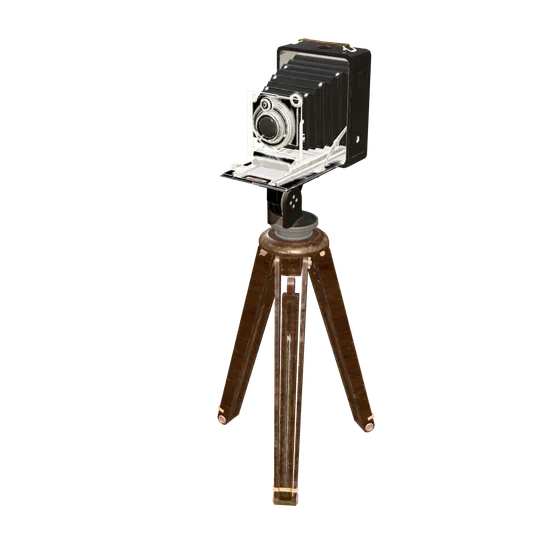
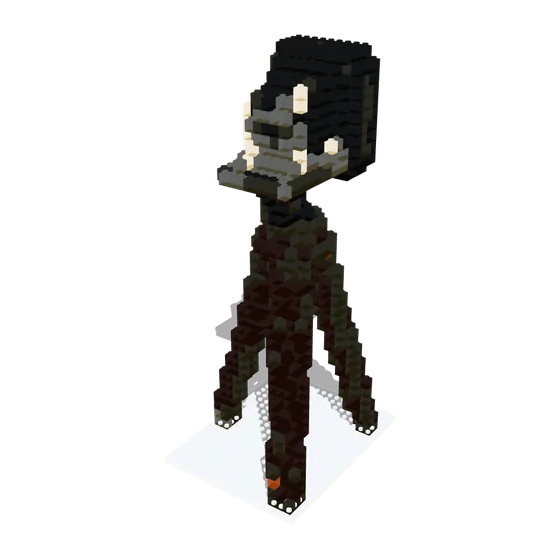
Files it converts: GLB, glTF, OBJ and STL to bricks
- GLB and glTF (best: they keep the colours)
- OBJ, or a zipped OBJ with its material and texture files
- STL (shape only, so the model comes out in one colour)
Phone USDZ files usually don't open; export as GLB or OBJ from your scanning app instead. You can tap Import a 3D scan or drag the file onto the page.
How to convert a Polycam or Scaniverse scan to bricks
- Export your scan from the app (Polycam, Scaniverse or similar) as GLB or OBJ.
- Open Brickalike and choose Import a 3D scan. The file is read in your browser, not uploaded.
- Pick the detail (8 to 72 studs wide). If a floor was scanned with the object, a switch appears to ignore it.
- Check the brick count, size and colours, then download what you need.
3D scan or camera scan: which gives a better brick model?
A good 3D scan keeps detail the built-in camera scan can't: hollows, handles and dents. The camera scan is quicker and needs nothing else; an imported scan is usually more accurate.
Preview it free, pay once to download
Scanning, the 3D preview, the brick count and the parts list on screen are free. Saving the files (one-piece STL, brick kit, parts lists and building manual) is a one-off €12, with secure checkout by Stripe. One unlock code works on up to 3 browsers or devices.
Build one free